
Unaric Voice
How to Make a Call with Unaric Voice in Microsoft Teams Desktop
1.Open Unaric Voice in Microsoft Teams.
2.Select the Outbound Caller ID, if multiple numbers are available (e. g. queues, main numbers, direct extensions).
Choose which number will be shown to the call recipient. Hover the options for more details.
The currently active Outbound Caller ID is displayed directly below the Call button.
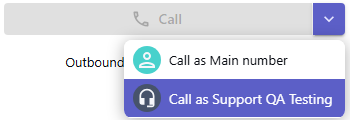
3.Use the dial pad to enter a phone number manually, or type a number in the input field above the dial pad.
You can also search for a record by typing a name (at least 3 characters) and then clicking the magnifying glass icon to start the search.
▪Search categories:
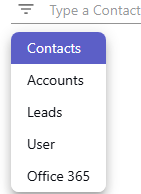
•Contacts in Salesforce
•Accounts in Salesforce
•Leads in Salesforce
•Users in Salesforce (only active users with valid license)
•Office 365 contacts
▪Select a phone number: If the selected record contains multiple phone numbers, you can choose the correct one before placing the call. The search key is highlighted in the results.
If the Salesforce contact has no phone number, the account phone number is displayed if available.
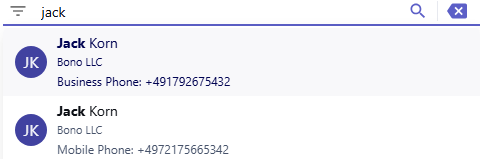
4.Click the search result with the desired phone number (or the Call button when entering a number manually) to start the call.
a.A modal window in Unaric Voice will appear, showing the call direction, the outbound caller id and the contact (contact name if available from Salesforce or else: number + (external))
b.At the same time, a Teams call pop-up appears.
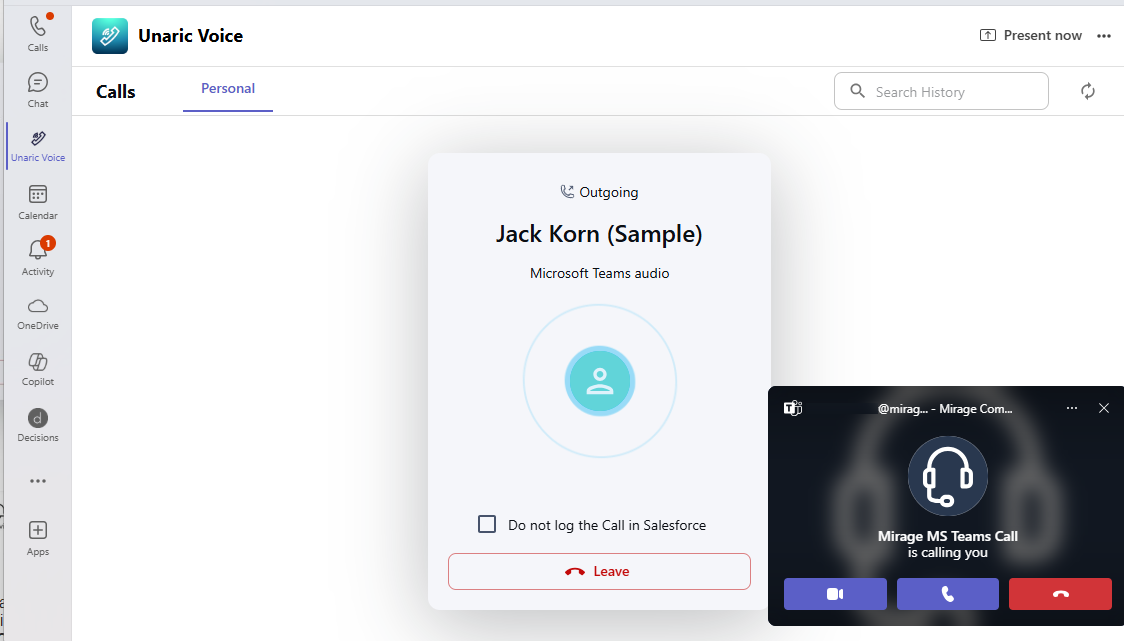
5.To join the call, click Accept in the MS-Teams pop-up.
a.You cannot join the call from the Unaric Voice modal.
b.You can Leave or Decline the call in both the Unaric Voice modal and the MS-Teams pop-up.
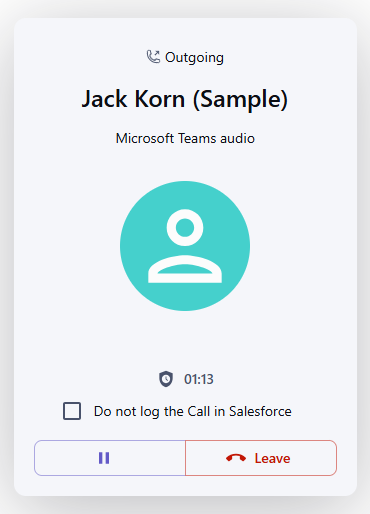
6.Once the call is accepted, the Active Call Screen appears:
oThe screen shows the call direction, the contact or number and the call timer.
oIf you do not want to log the call in Salesforce, check the checkbox Do not log the Call in Salesforce.
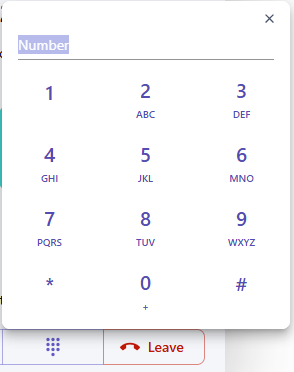
oA control bar allows you to:
▪Hold/Resume the call
▪Open/Close a dialpad to send DTMF tones during the call
▪Leave the call
oThe rest of the interface is dimmed to prevent starting another call
Alternative:
You can also start a call directly from your Call History.
How to Make a Call with Unaric Voice in Microsoft Teams Mobile
1.Open Unaric Voice in the Microsoft Teams mobile app (Android or iOS).
2.Tap the phone icon at the bottom right to open the number pad.
3.Select the Outbound Caller ID, if multiple numbers are available (e. g. queues, main numbers, direct extensions).
Choose which number will be shown to the call recipient. Hover the options for more details.
The currently active Outbound Caller ID is displayed directly below the Call button.
4.Use the dial pad to enter a phone number manually, or type a number in the input field above the dial pad.
You can also search for a record by typing a name (at least 3 characters) and then clicking the magnifying glass icon to start the search.
▪Search categories:
•Contacts in Salesforce
•Accounts in Salesforce
•Leads in Salesforce
•Users in Salesforce (only active users with valid license)
•Office 365 contacts
▪Select a phone number: If the selected record contains multiple phone numbers, you can choose the correct one before placing the call. The search key is highlighted in the results.
If the Salesforce contact has no phone number, the account phone number is displayed if available.
5.Tap the search result with the desired phone number (or the Call button when entering a number manually) to start the call.
a.A modal window in Unaric Voice will appear, showing the call direction and the contact (contact name if available from Salesforce or else: number + (external))
b.At the same time, a Teams call pop-up appears.
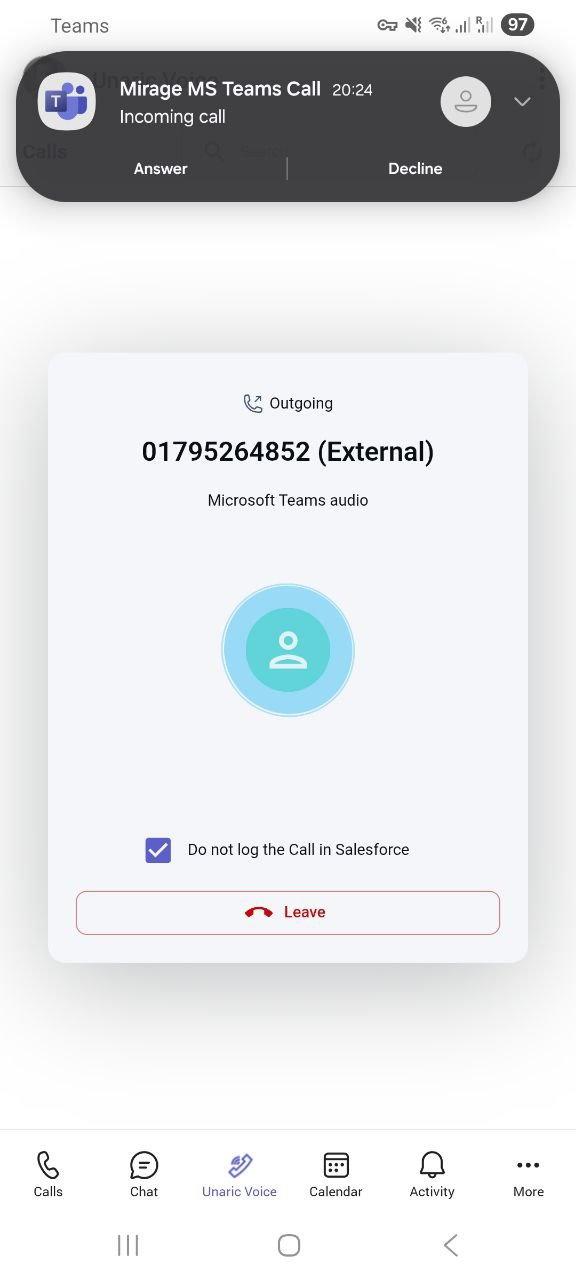
6.To answer, use the Teams banner.
a.You cannot join the call from the Unaric Voice modal.
b.You can Leave or Decline the call in both the Unaric Voice modal and the MS-Teams pop-up.
7.Once the call is accepted, the Active Call Screen appears:
oThe screen shows the call direction, the contact or number and the call timer.
oIf you do not want to log the call in Salesforce, check the checkbox Do not log the Call in Salesforce.
oA control bar allows you to:
▪Hold/Resume the call
▪Open/Close a dialpad to send DTMF tones during the call
▪Leave the call
oThe rest of the interface is dimmed to prevent starting another call
Alternative:
You can also start a call directly from the Call History by tapping the green Call icon next to an entry to call that contact.

