Unaric Voice
Note: The full installation and Azure setup required for Live Transcription in version 7.9 must be performed by Unaric.
Please contact sales@unaric.de to schedule the setup.
To enable Live Transcription for MS Teams PSTN Calls in Salesforce, follow these steps:
1.Enable the "Unaric MS-Teams Connector Premium" license.
2.Enable media file in Mirage Configuration.
3.Configure transcription settings in Call Center - Recording/Transcription.
▪Add a Mirage Call Center - Recording/Transcription record of record type MS-Teams Azure Recording/Transcription.
▪Check Active.
▪Check Use Call Transcription.
▪Select the transcription type 'Live Transcription'.
▪Add values for AI Foundry Speech Services Key, AI Foundry Speech Services Region and Transcription Service Url.
▪Set the default language.
▪Enable Save Call Transcription in Salesforce to store the completed call transcription in a Salesforce Task after the call ends.
▪Select the Recording/Transcription configuration that defines how call transcriptions should be saved in Salesforce.
Tip: If you need different configurations for specific users, clone the media file record so that the record type, AI Foundry Speech Services Key, AI Foundry Speech Services Region, and Transcription Service URL remain the same for all users in a tenant.
4.Add call center users to this setup and assign them a Voice license so that they can use softphone.
Note: Live Transcription currently works only for users who have access to the softphone.
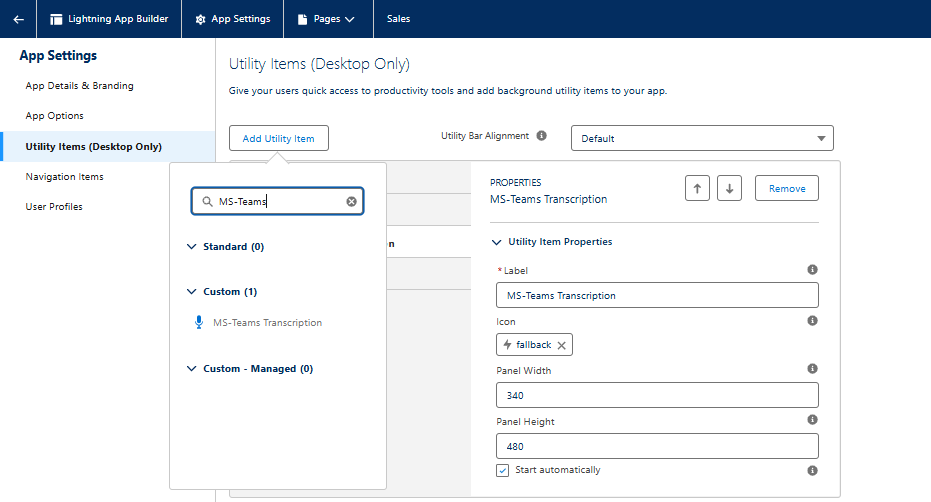
5.Add the utility item 'MS Teams Transcription' in the Lightning App Builder.