Activation Server 5
This option allows you to perform a real E-Mail activation test to validate your settings.
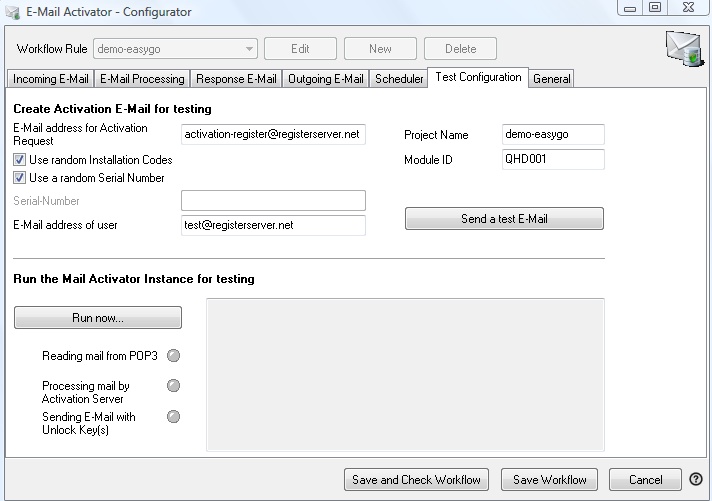
Test Configuration
Create Activation E-Mail for testing
•E-Mail address for Activation Request. This address should match the E-Mail address you defined for incoming E-Mails.
•Project Name. Must exactly match the project name defined in the project template in the field <ProjectName>. A default project demo-easygo is installed with the Activation Server..
•Module ID. Must exactly match the module ID for the main module, defined in the project template in the field <ModuleID>. The module ID of the project demo-easygo is QHD001.
•Use random Installation Codes. Generates random Installation Codes / Hardware IDs
•Use a random Serial Number. Generates a random Serial Number. If you uncheck this option, you can type in your own ID
•CustomerInfo: Define which address screen, used during product activation, should be simulated
•Old Autoblock Style: Only use it for backward compatibility with server version below 3.1
•E-Mail address of user. E-Mail address where the Unlock Key(s) is sent.
Press the button: Send a test E-Mail to send out an E-Mail for a product activation. It has the same content like the Activation E-Mail from an user.
Run the E-Mail Activation Workflow Rule to test E-Mail Activation
Now you can run a test which processes all E-Mails, stored in the mailbox for Incoming E-Mail. If you have sent a Test E-Mail, then at least one Activation would be processed. Press the button Run Now. The following workflow is processed:
•Read incoming E-Mail
•Send the Activation Request to the Activation Server 5, specified in E-Mail Processing
•Send out an E-Mail with either an Unlock Key or an error message
•Send out E-Mails to the addresses specified for E-Mail forwarding
You will see status messages in the text window. Check, if the configuration is working:
•The activation must be documented in the Activation Server 5. Login into the Administration Interface and select Data Management. You should find an entry there
•An E-Mail with an Unlock Key should be in the Inbox of the E-Mail address you defined above - E-Mail address for Activation Request