Unaric Voice
Microsoft Teams supports blind and consulted transfers.
From Salesforce you can transfer the call to different targets, such:
•A MS-Teams User in the Office 365 directory
•A MS-Teams User via email address
•A CTI Data Connector User with MS-Teams
•A Phone Number
•A MS-Teams Call Queue
While a call is active, click on the initiate transfer  button.
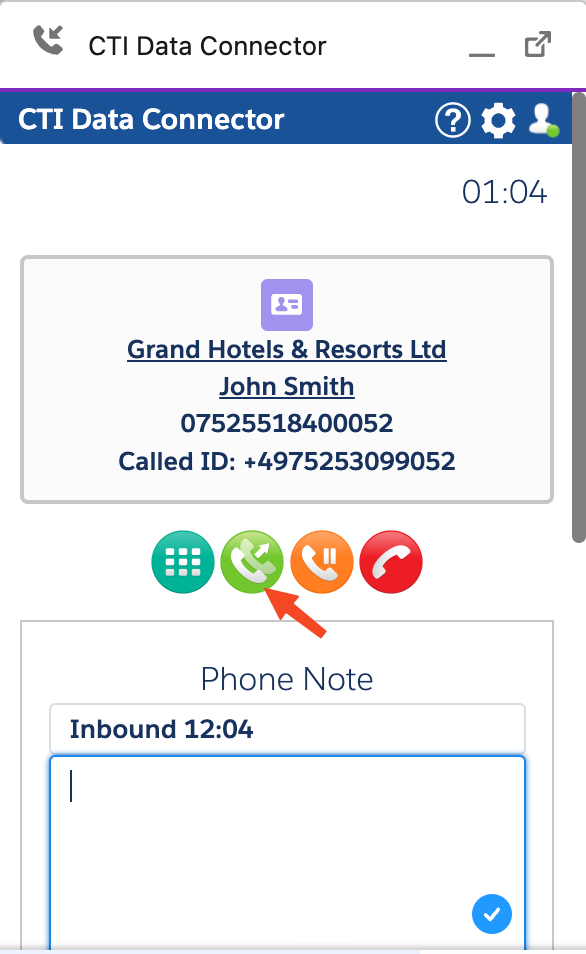
Then type in the line Phone Number / Internal Directory the phone number, agent name (Office 365 directory user, or CTI Data Connector user in Salesforce), email address (MS-Teams) or queue name to which you want to transfer the call.
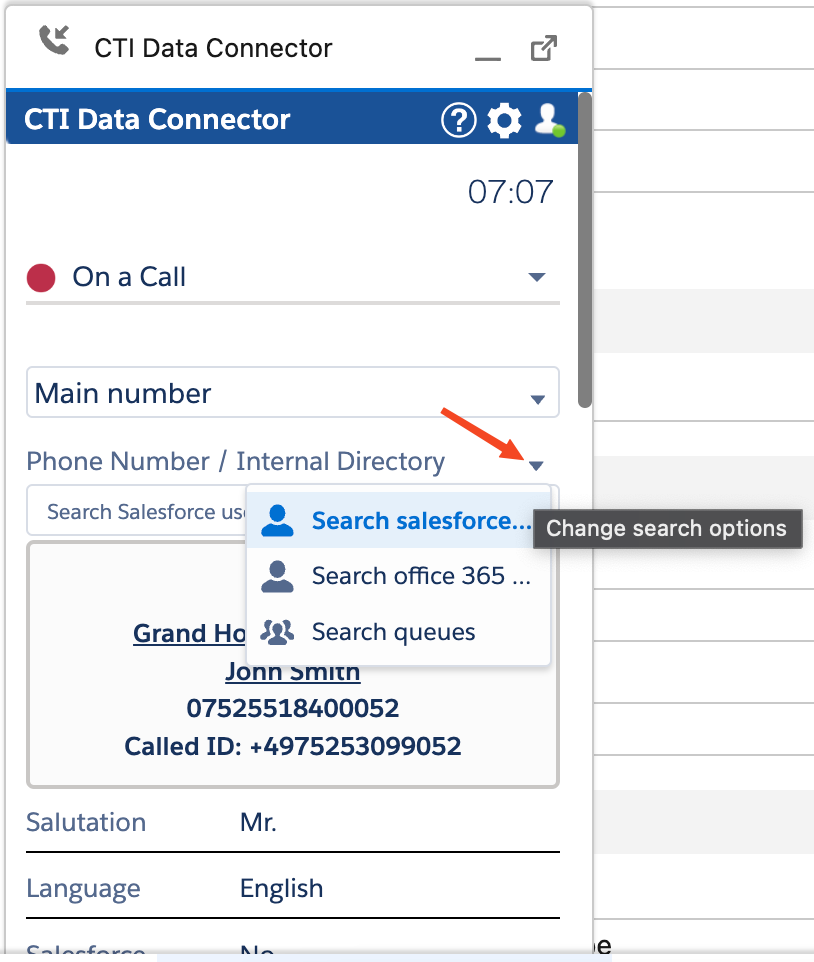
The example below shows searching an internal user in the Office 365 directory
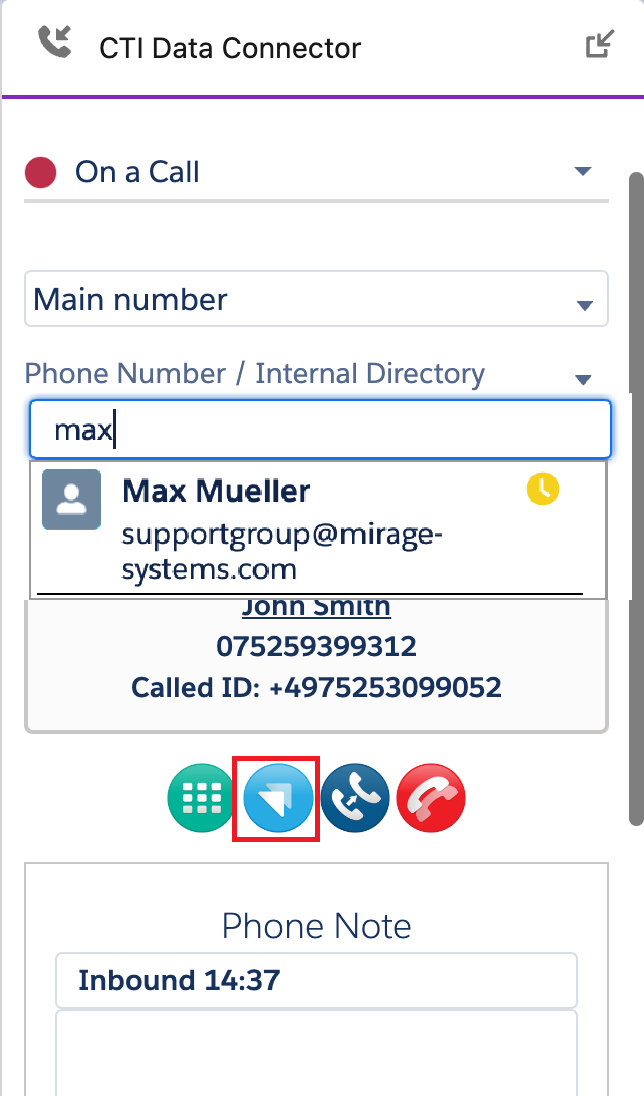
The type of transfer depends on the buttons used
|
You can do a blind / one step transfer. The call is directly transferred to the agent or queue |
|
You can do a consulted transfer - speaking with an agent before the transfer is done |
|
You can terminate the transfer process and go back to the call |